#ad: This post contains affiliate links. As an Amazon Associate I earn from qualifying purchases.
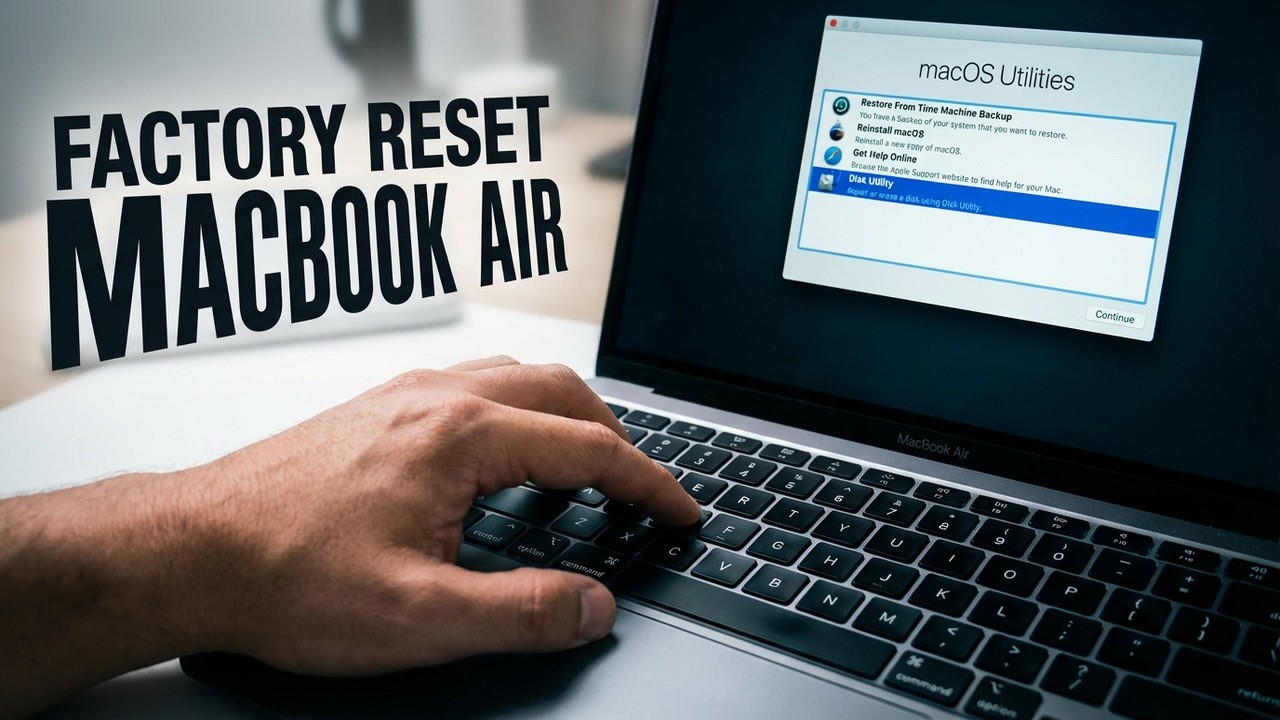
Selling, giving away or just starting fresh? Here is how to wipe a MacBook Air back to factory settings.
I recently reset a MacBook Air back to factory settings, and the process is easier than you might think. You shut it down, boot into macOS Recovery, wipe the drive and reinstall macOS. Here is exactly how I did it, step by step, so you end up with a fresh, completely factory reset MacBook Air.
- No extra software needed; it is all built in
- Fully wipes your personal data
- Defaults in Disk Utility are fine
- Leaves you with a clean macOS install
- You may need to log in a couple of times
- Reinstalling macOS can take a long time on slower MacBooks
- Easy to pick the wrong volume if you do not check the size
▶ Watch the full review on YouTube
Step 1: Boot into macOS Recovery
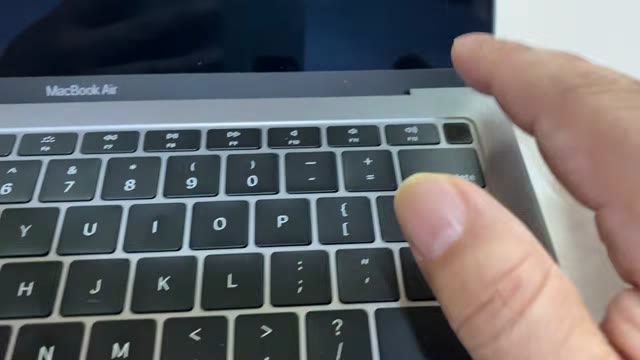
First, go up to the Apple menu and shut down your computer. Once it is fully off, press the power button, but hold down the Command and R keys while it starts. That boots the MacBook into macOS Recovery mode.
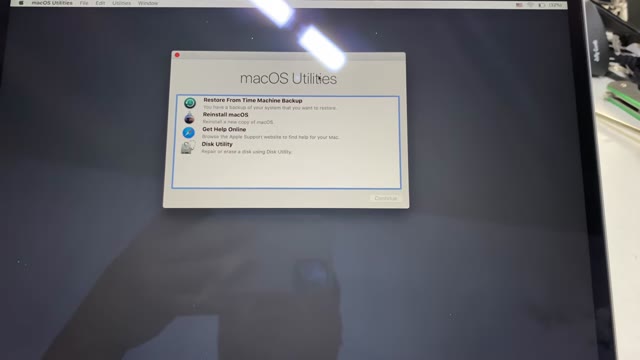
This can take a little while, and you may have to log back into your computer along the way. Once you get there, you will see the macOS Utilities window.
Step 2: Erase the drive in Disk Utility
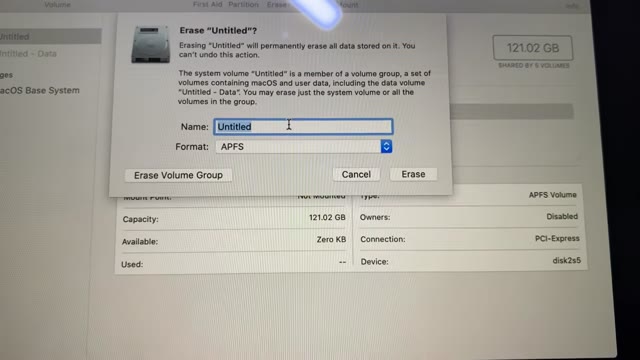
The first thing to do is wipe your hard drive. Click Disk Utility and hit Continue. By default it selects the operating system image, but you want to select your hard drive instead, which is usually the first one. Verify it by making sure the size is right.
Click Erase. As far as I can tell, all of the defaults are just fine. You can name the drive if you want, and I left the format as APFS. Hit Erase, log in one more time if it asks you to verify, and it will start erasing the drive. Then hit Done and close Disk Utility.
Step 3: Reinstall macOS
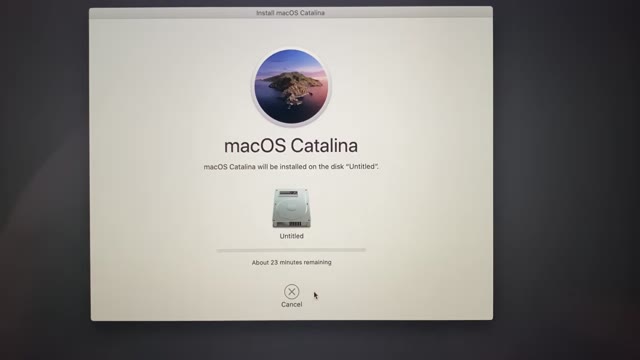
Back in macOS Utilities, choose Reinstall macOS and hit Continue to start installing a fresh copy. When it asks where you want to install the OS, select your hard drive and hit Next.
Depending on the speed of your MacBook, the reinstall may take a while. Just plug it into power and let her go.
About the buy link
The MacBook Air in my video is an older model. The button goes to the current MacBook Air that my video description links.
Bottom line
When it finishes, you have a fresh, completely factory reset MacBook Air, so you can give it away, sell it, or do whatever you want with it. If you are shopping for a replacement, the button goes to the current MacBook Air on Amazon.
FAQ
What keys do I hold to get into Recovery?
Hold Command and R while you press the power button.
Which format should I pick when erasing?
I left the default, APFS.
How do I know I picked the right drive?
It is usually the first one; check that the size matches your drive.
How long does the reinstall take?
It depends on your MacBook. Plug it in and let it run.
Is this an affiliate link?
Yes. The buttons are #ad affiliate links, and as an Amazon Associate I earn from qualifying purchases. It costs you nothing extra.


Leave a Reply