#ad: This post contains affiliate links. As an Amazon Associate I earn from qualifying purchases.
My Google Wi-Fi mesh failed me, so I swapped it for eero.
I used the Google Wi-Fi mesh system for the last few years and at first it improved coverage and speed. Over time I kept adding nodes to fix problems and now had seven in a single-story house. Something is wrong with them, so I replaced them with eero.
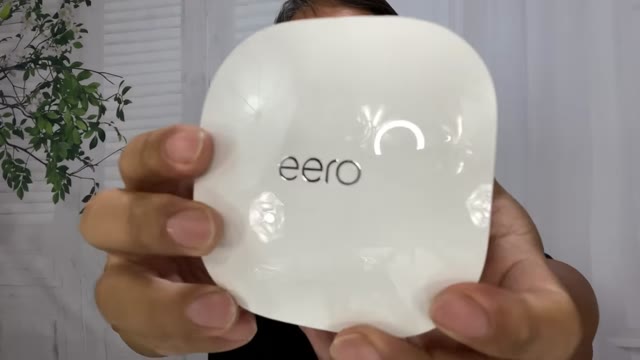
- Very easy setup
- Full signal in the far corner of my house
- Compact and nicer looking than Google nodes
- Ports on the back look clean
- Ethernet cable is short, about three feet
- Ports on the back can be hard to reach when plugged in
▶ Watch the full review on YouTube
Why I left Google Wi-Fi
With seven nodes along the length of my house, 10 to 30 feet apart, they always showed a weak signal to each other. Sometimes the network disappeared for a minute. I could be three feet from a node and the signal said moderate. In the far corner room I could not even run a speed test because the phone bounced to cellular.
Unboxing eero
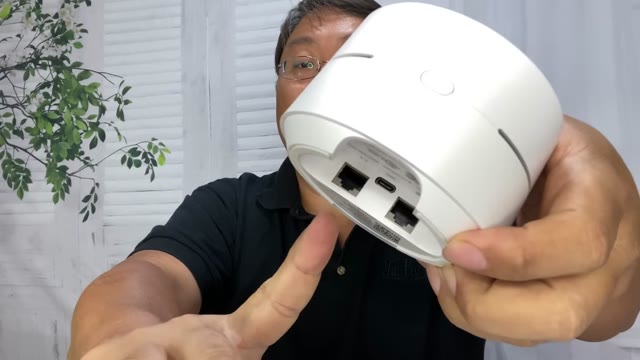
The box has three eero nodes with a glossy white top, a compound curve and a chrome logo, matte sides, two Ethernet jacks and a USB-C on the back and a rubberized bottom. They are smaller and shorter than the Google nodes, and I like the plugs on the back. The power plugs are two-prong adapters with USB-C connectors, plus a short Ethernet cable.

Setup
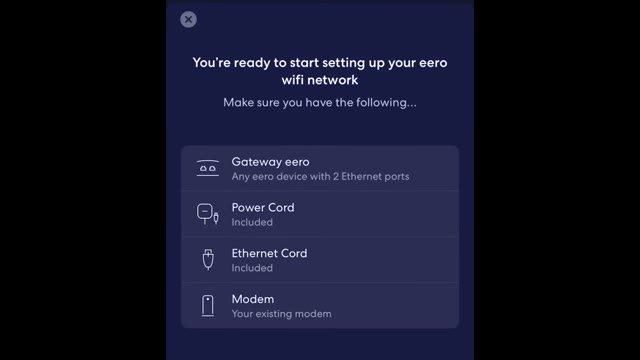
I made an account in the app, unplugged my old modem and router, and plugged the first node into the modem with Ethernet, then power. It took a little while to find it. I named the room, gave the Wi-Fi a name and password, and added the other nodes.
Results
Back in the same far corner I had a full signal, and a speed test showed about 25 megabits down, which is the furthest point from my router and plenty for high-def streaming. The big improvement is that the connection stays on. I am really impressed.
FAQ
Why replace Google Wi-Fi?
Weak node-to-node signals and dropouts, even with seven nodes.
Is eero easy to set up?
Yes, the app guides you and the first node plugs into the modem.
What speed did you get in the far corner?
About 25 Mbps, with a full signal.
Is an Ethernet cable included?
Yes, a short one about three feet long.
Is this an affiliate link?
Yes. The buttons are #ad affiliate links, and as an Amazon Associate I earn from qualifying purchases. It costs you nothing extra.


Leave a Reply