#ad: This post contains affiliate links. As an Amazon Associate I earn from qualifying purchases.
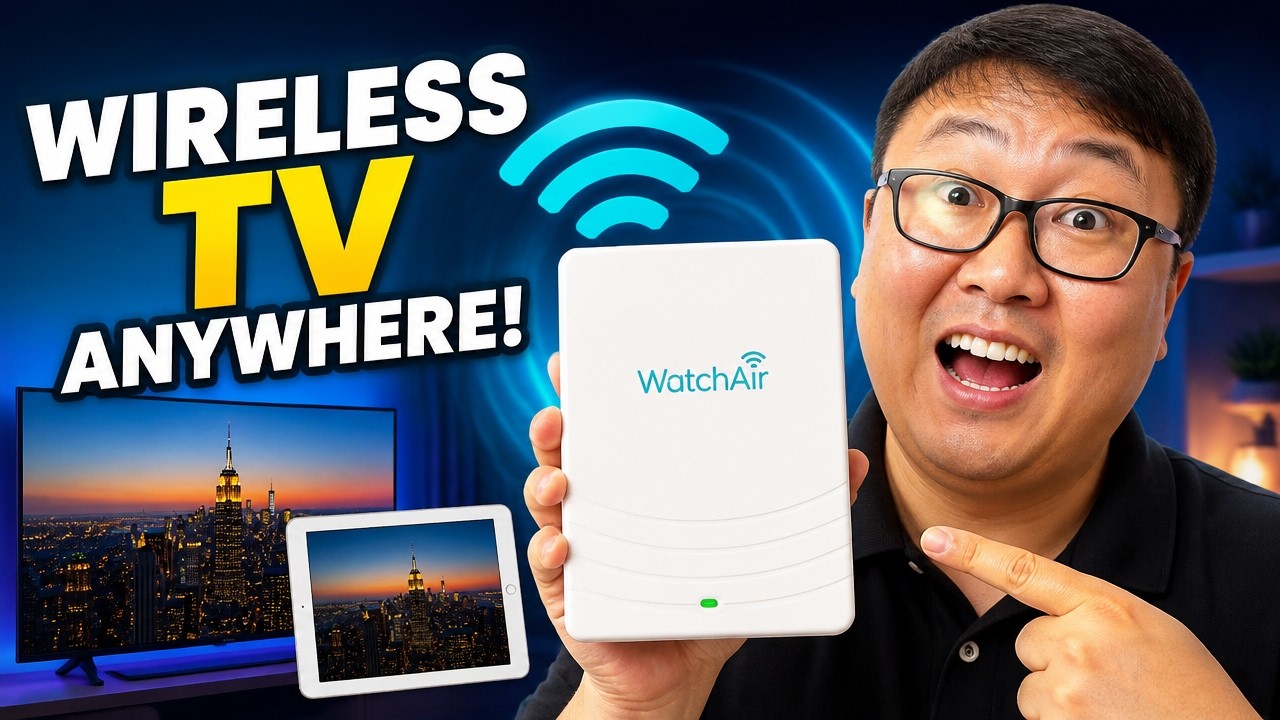
Want to watch your local channels on an iPad, at home or on the road, with no subscription? That’s what I tried with WatchAir.
2026 update: WatchAir is no longer in business and its app and devices no longer work, so the button goes to the SiliconDust HDHomeRun Flex 4K, a network tuner that streams over-the-air TV from your antenna to devices on your network. Below is my original setup and review. WatchAir was an antenna and transceiver that took free over-the-air signals and streamed them through your router to iOS, Android or a TV, with no subscription. I wanted it for watching local sports, especially my Lions games, while traveling.

- No monthly subscription
- Clean, modern design
- Easy setup through the app
- Found 30 channels without optimizing
- Smooth, full-screen streaming on an iPad Mini
- Could record shows
- Reset with a paperclip
- No HDMI out; needs a smart TV app or streaming box to mirror
- Over-the-air TV has lots of commercials
- Firmware update dropped the Wi-Fi connection mid-setup
- WatchAir has since shut down (see update)
▶ Watch the full review on YouTube
Why I wanted it
There aren’t a lot of really good options for cord cutters, and even if you’re not cutting the cord, watching local TV when you travel isn’t easy. I’d looked at Sling boxes and other things. I wanted something standalone for network TV, especially weekend college and pro football and basketball, with no subscription instead of paying for a streaming service.
Unboxing and hardware
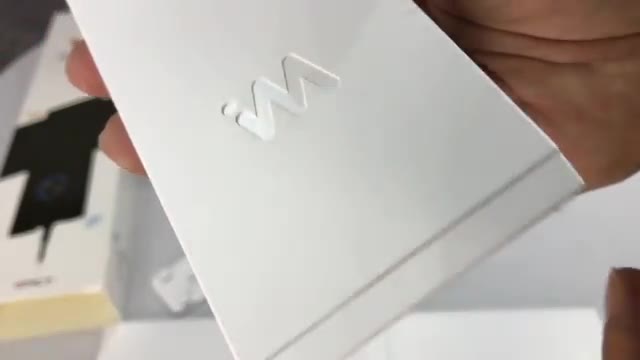
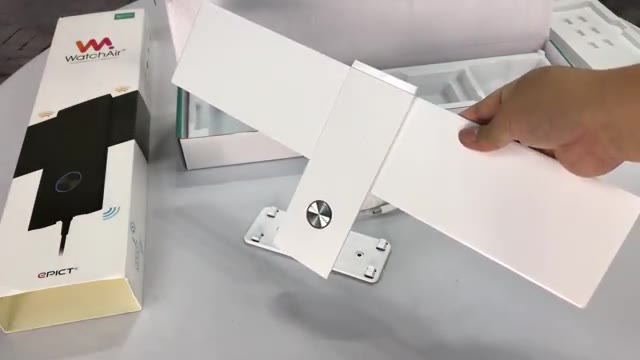
Everything is white and clean looking: a power brick with a long cord, mounting screws, an antenna adapter, and a backplate with 3M adhesive for mounting to glass. The business end has a textured silver button, a clear ring that lights up, and on the side an antenna port, a microSD slot, a reset pinhole, a USB port and power.
The flat antenna snaps onto the receiver with tabs; make sure they’re lined up. There’s a power plug on the side and one on the bottom, so the cord can drop straight down if you mount it. One thing you’ll notice: there’s no HDMI out.
Placement
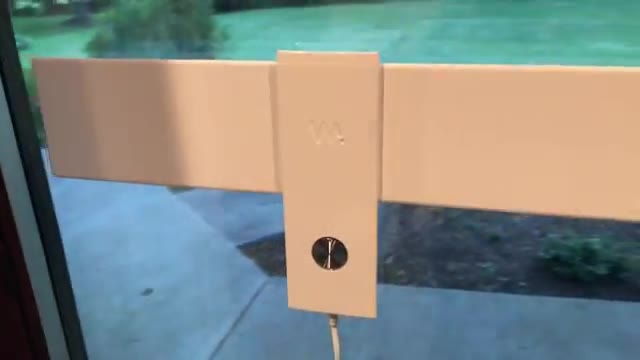
You want the antenna on glass facing the broadcast towers. For me that’s south toward Chicago. It also connects to your Wi-Fi router, and WatchAir suggested staying within about 20 feet of it, so I stuck it on a window near my router.
Setup in the app
Download the WatchAir app and create an account. The app shows how to install the antenna, or connect your existing roof antenna by cable. Then connect your iPad to the WatchAir’s own Wi-Fi network (it starts with WA and six characters; the password matched the name for me).
I accepted a firmware update. When it rebooted it dropped the connection, so I had to reconnect in settings, then pick my home Wi-Fi and enter its password. Then it scanned channels and found 30 with varying signal strength, before I’d optimized anything.
Watching live TV
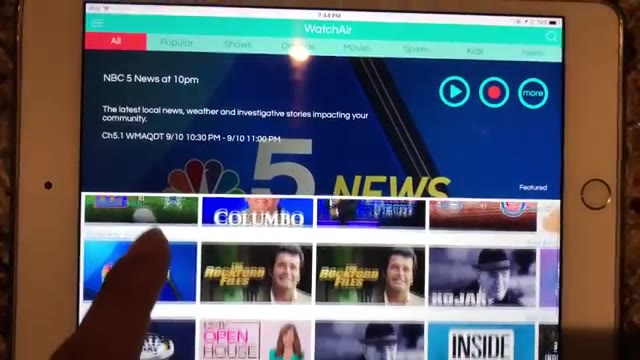
The app looked polished: an available-now section for live TV, a lineup, and a reminder (alarm clock) for upcoming shows. I played Columbo, and it took up the full screen on my iPad Mini with no pixelation or jitter, and the sound was fine. You can also hit record, and it records to the iPad.
To get it on a TV, you need a smart TV with the app or a streaming box like Roku, Chromecast or Apple TV and mirror it, or an AV adapter. If anything goes wrong in setup, hold a paperclip in the pinhole for 10 to 15 seconds to reset; I did it twice to test switching networks.
FAQ
Does WatchAir still work?
No. The company is no longer in business. A network tuner like the HDHomeRun Flex 4K does a similar job.
Did WatchAir need a subscription?
No. That was the big appeal.
How many channels did it find?
30 near Chicago, before I optimized placement.
Can you watch it on a TV?
Not directly; there’s no HDMI. Use a smart TV app or mirror to a streaming box.
Could it record?
Yes, to my iPad.


Leave a Reply